
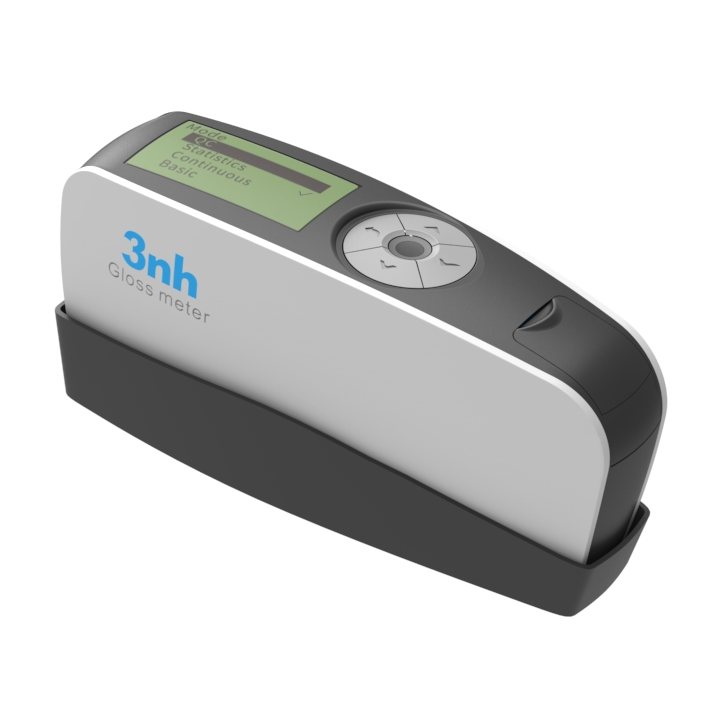
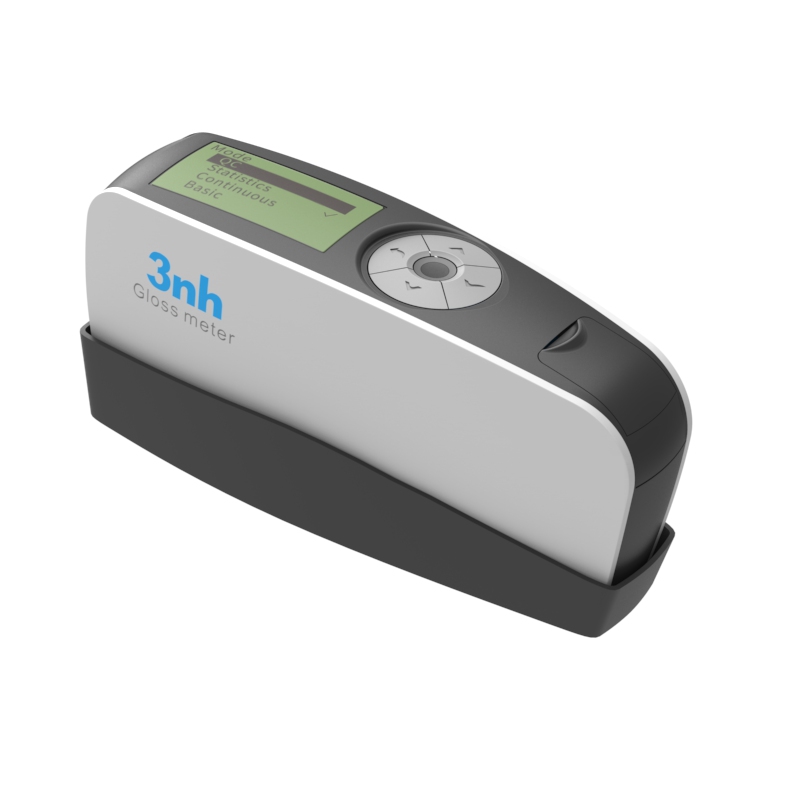
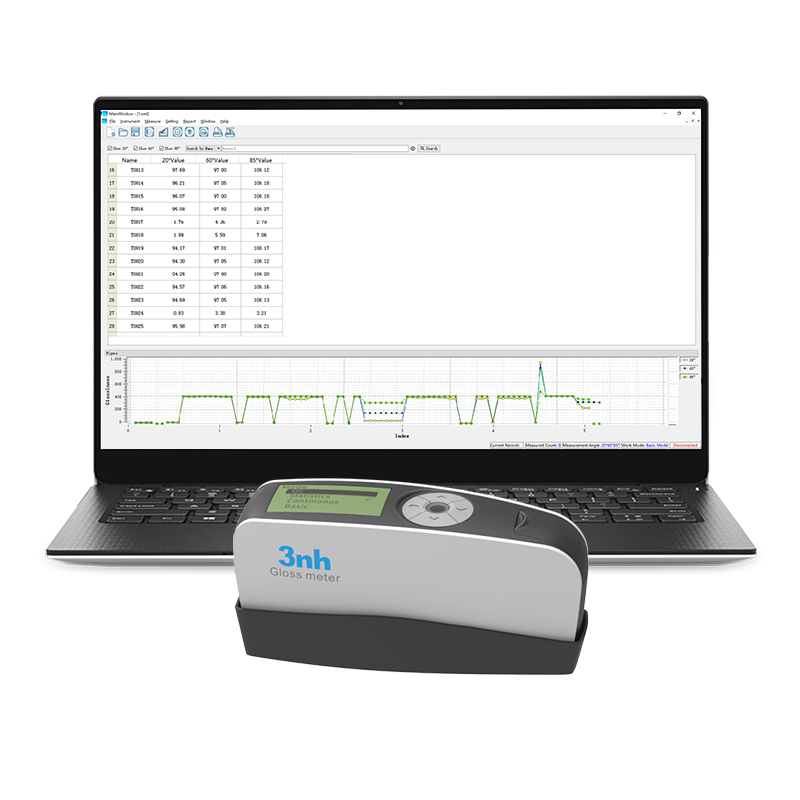
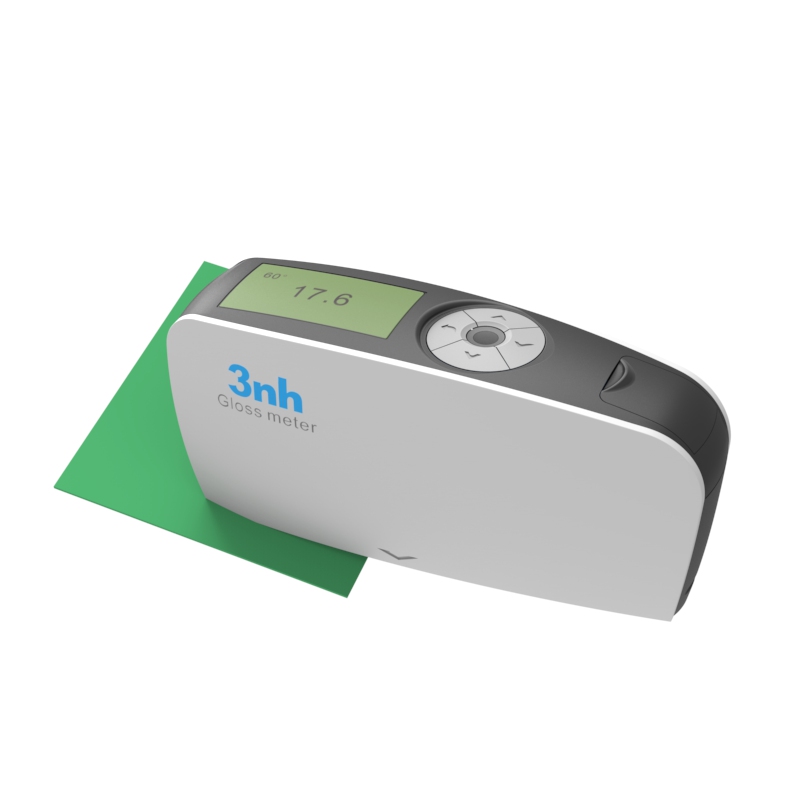
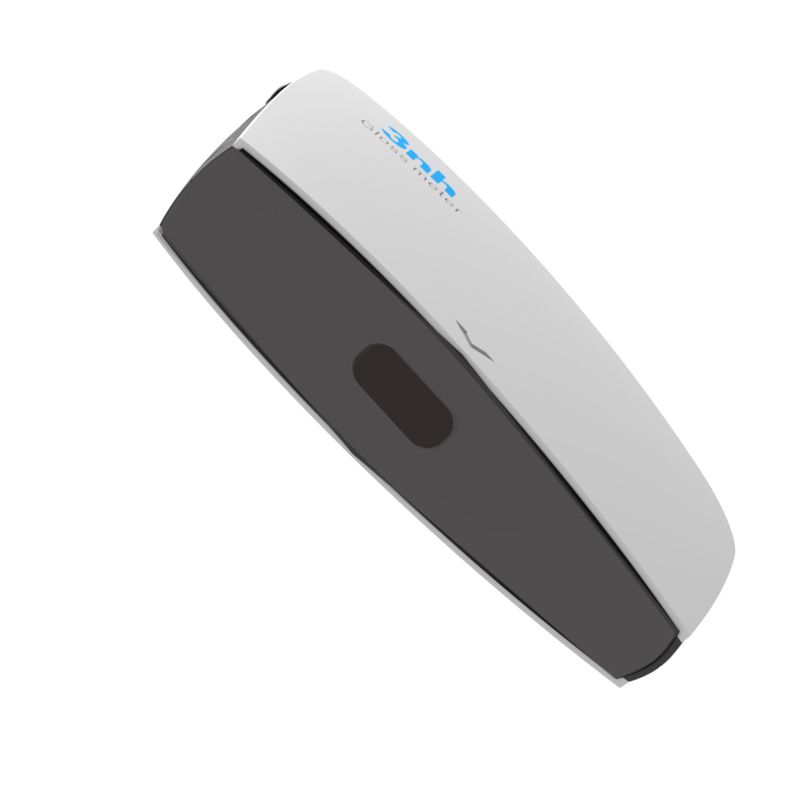
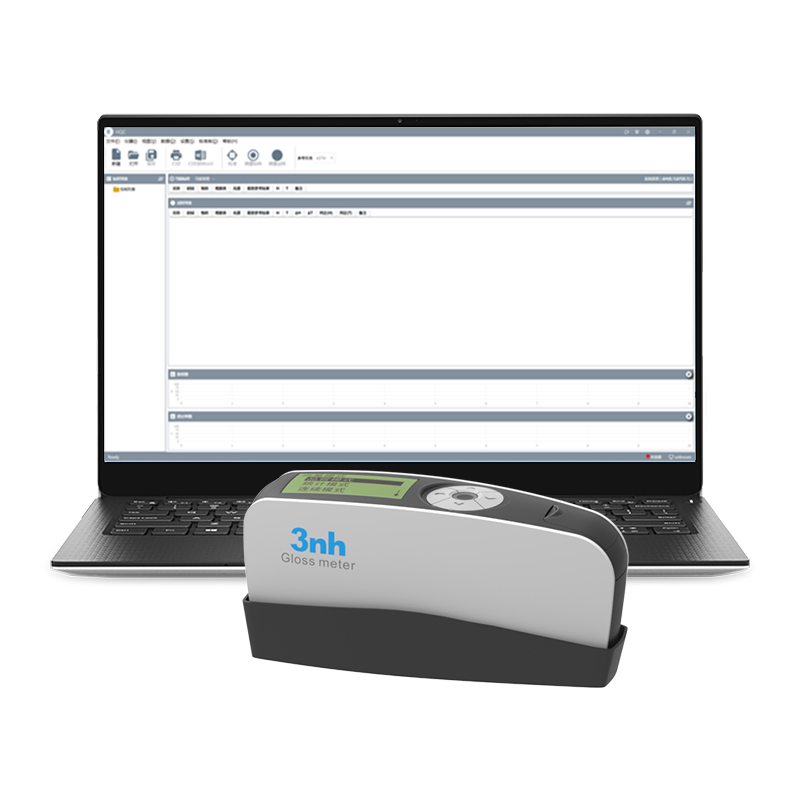
3NH KS60 Glossmeter Designed for precise measurement across multiple industries. It features a 60° measurement angle with a 9×15 mm measurement spot, a wide range of 0-1000 GU, and a resolution of 0.1 GU to ensure accurate data. Widely applicable for gloss measurement and data transmission in industries such as paints and inks, coatings, paper and printing, plastics and electronics, furniture, ceramics, electroplating, hardware, and marble.
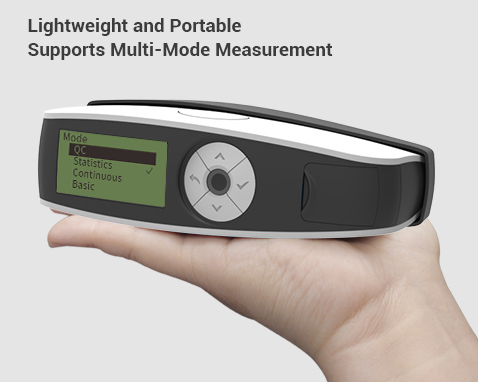
The instrument delivers results in just 0.5 seconds and supports four modes that can be switched with one touch: standard measurement, statistics, continuous monitoring, and quality control, enabling a single device to handle diverse application scenarios. It comes standard with GQC6 quality management software, supporting one-click data export for easy quality traceability, meeting the needs of both laboratory and on-site testing.
Fast Measurement: 0.5 seconds per reading, reducing wait time during batch inspections.
High Repeatability: ±0.2 GU (0-100 GU); ±0.2% GU (100-1000 GU), minimizing re-measurement frequency and improving quality inspection efficiency.
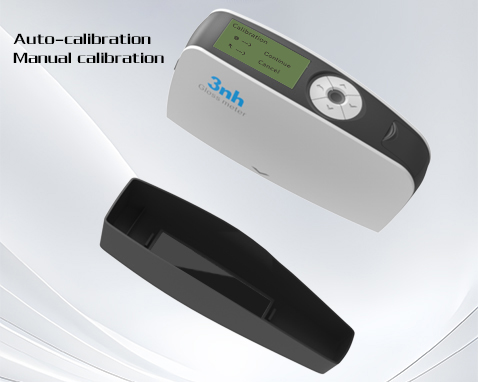
Dual Calibration & Compliance: Features automatic calibration check with a standard plate plus manual calibration, ensuring accurate measurement data and compliance with JJG 696-2015.
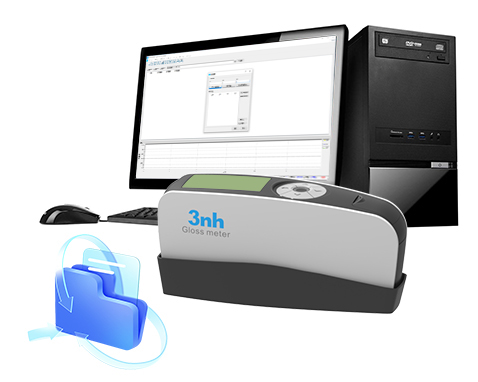
35,000-Record Storage: Massive data capacity with mode-specific storage, eliminating frequent backup needs and solving data storage limitations.
Software + USB Connectivity: GQC6 software supports data export and report printing, eliminating manual data organization and enabling easy quality traceability and data sharing.
Dual Power Supply Long Battery Life: Powered by one AA battery for up to 10,000 measurements, plus USB power supply, reducing battery replacement frequency and costs while preventing power interruptions during measurement.
Adjustable Auto Shutdown: Selectable auto shutdown from 30 to 120 seconds, extending battery life and further reducing operating costs.
Multi-Language Support: Simplified Chinese, English, and Traditional Chinese, requiring no additional training and accommodating different team preferences.
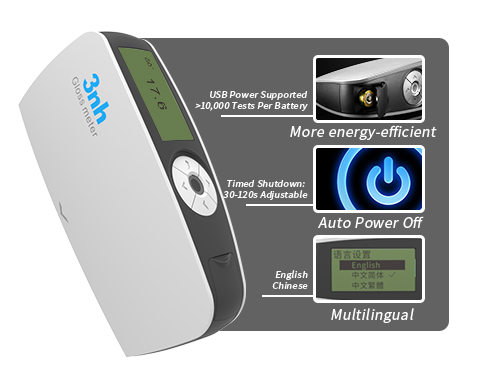
Lightweight Design: Compact dimensions of 160×52×84 mm and weight of 300 g, easy to carry and reducing transport effort.
One-Key Mode Switching: Four measurement modes—Basic Mode, Statistics Mode, Continuous Mode, and Quality Management Mode—to suit different quality inspection scenarios.
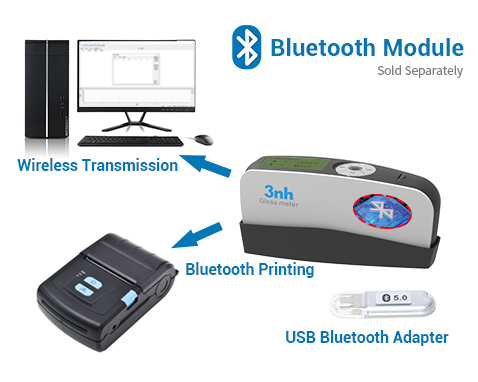
Expansion Support: Optional micro-printer and Bluetooth 5.0 adapter enable on-site instant report printing and wireless data transmission.
| KS Glossmeter Technical Specifications | |
| Product Model | KS60 Glossmeter |
| Measurement Angle | 60° |
| Measurement Spot (mm) | 60°:9X15 |
| Measurement Range | 60°:0~1000GU |
| Resolution | 0.1GU |
| Features | Suitable for gloss measurement and gloss data transfer in industries such as paints, inks, coatings, paper printing, plastics and electronics, furniture, ceramics, electroplating, hardware, marble, etc. |
| Measurement Modes | Basic mode, statistical mode, continuous mode, quality control mode |
| Measurement Time | 0.5 seconds |
| Repeatability |
0~100GU:±0.2GU ; 100~1000GU:±0.2%GU |
| Accuracy | Meets the requirements of JJG 696 for working glossmeters |
| Auto Shutdown Time | 30~120 seconds, adjustable |
| Long-Term Calibration | Features automatic verification of calibration standard plate function / manual calibration |
| Language | Simplified Chinese, English, Traditional Chinese |
| Data Storage | 35,000 records (15,000 in basic mode and continuous mode, 10,000 in quality control mode, 10,000 in statistical mode) |
| Display | 2.3-inch monochrome display |
| Dimensions | 160 X 52 X 84mm |
| Weight | Approx. 300 g (including calibration case and battery) |
| Power Supply | Powered by 1 AA battery (alkaline or Ni-MH rechargeable), capable of over 10,000 measurements; or via USB port |
| Interface | USB |
| PC Software | GQC6 quality management software, inspection report printing, extended functionality |
| Operating Temperature Range | 0~40℃(32~104°F) |
| Storage Temperature Range | -20~50℃(-4~122°F) |
| Humidity | Less than 85% RH, non-condensing |
| Standard Accessories | USB cable, instruction manual, GQC6 quality management software (available for download from official website or provided upon request), calibration plate |
| Optional Accessories | Micro printer, Bluetooth 5.0 adapter |
| Note | Technical parameters are for reference only, subject to the actual product sold. |
1. When I received NH310/NH300 colorimeter and perform measurement, why the measured data is abnormal?
After receiving NH310/NH300, you have to perform white and black calibration manually when first starting.
2. In which condition, manual white and black calibration and auto calibration are required for NH310?
a. It’s needed to perform manual calibration for NH310 when first starting.
b. In the subsequent starting, NH310 will perform auto calibration at startup. No need to perform manual calibration.
c. Suggestion: it’s best to perform manual calibration once a week or when NH310 measured data is not accurate.
3. In which condition, manual white and black calibration for NH300 is required?
a. It’s needed to perform manual calibration for NH300 when first starting.
b. In the subsequent starting, no need to perform manual calibration.
c. Suggestion: it’s best to perform manual calibration once a week or when NH300 measured data is not accurate.
4. How to replace NH310 measuring aperture?
There are three measuring apertures for NH310: Φ8mm (standard accessory), Φ4mm (standard accessory), extended Φ8mm (optional accessory)
a. Turning on
b. Removing measuring aperture, install the needed measuring aperture.
c. Select “Settings-Aperture Setting” in main menu to select corresponding measuring aperture.
d. After selecting aperture, the instrument will display “White and Black Calibration” interface. White and black calibration must be performed.
e. Replace completed.
5. CQCS3 (Color Quality Control System) Installation
a. Before installation, please Copy CQCS3 folder to your computer and don’t remove any files in CQCS3 folder.
b. Double-click the setup.exe to install CQCS3 software.
c. Then double-click Install.bat under the CQCS3\USB_Driver file to install the driver.
d. Detailed installation information please read the "Installing Software" under CQCS3 User manual.doc.
6. How to check communication port?
a. Connect colorimeter to the PC with USB cable.
b. Turn on the colorimeter to enter main menu. Select “Comm” and press “Enter” key to start communication.
c. Right click on “My Computer” on the desktop. Click “Manage” -> “Device Manager” -> “Ports”, you can see similar display as “SCI USB2Serial (COM6)”.
d. Click “Settings->Communication Parameters” in CQCS3 software interface. Select the corresponding port in “Serial Port”.
7. After completing CQCS3 installation, how to solve the problem if it display “! USB Device” or “! SCI USB2Serial (COM6)” when checking the communication port?
a. Right click “! USB Device” or “! SCI USB2Serial (COM6)”, “Update Driver” -> “Install from a list or specific location (Advanced)” -> “Next” ->“Include this location in the search” -> “Browse”, specify USB driver file path “CQCS3\USB_Driver”, click “Next”. Then it will install successfully.
b.Detailed installation information please refers to “2.2 Installing USB Driver” in Color Quality Management System User Manual.doc.
8. Notes for First Using CQCS3 Software
a. Users must specify Standard File Name, Sample File Name and Sample Database File Name when first use.
b.Standard File is use to store standard measurement data. Sample File is used to store sample measurement data. Sample Database File is used to store the measured data exported from sample records.
9. How to solve the problem when “Connection Timeout” occurred?
a. When the colorimeter is disconnected to the PC, “Connection Timeout” will occur. At the moment, you have to check whether the USB cable is well connected the colorimeter and the PC. Then you can re-plug the USB to try out.
b. After ensuring the colorimeter is connected to the PC with USB cable, turn on the colorimeter and enter the main menu. Select “Comm” and press “Enter” key to start communication.
c. Turn off CQCS3 software, and reopen it.
10. How to solve the problem when the interface display "USB Disconnect"
a. Check whether the USB cable is connected. If not, please connect it. Check whether the connection is effective. You can re-plug the USB cable to test.
b. If the USB cable is connected well but the interface still displays "USB Disconnect", please re-start the colorimeter and enter "Menu" -"Comm"to start the communication.
c. Change the USB cable or change the USB port in you PC.
11. How to solve the problem when the colorimeter cannot be turned on in the condition of battery-powered?
a. If this phenomenon occurred, it means the battery power is not enough. You need to charge the battery.
b. When charge the battery, please insert the battery to the instrument, and plug in the adapter to charge the battery. After 5 minutes, the instrument can be turned on.
c. If the instrument still cannot be turned on after charging 5 minutes, you can pull out the adapter and re-plug in to check it. Or repeat this operation.
d. If the instrument still cannot be turned on after charging 5 minutes, you can turn off the colorimeter and turn on it again to check it. Or repeat this operation.
e. If you have tried all the methods above but the colorimeter still cannot be turned on, please change the battery.
