
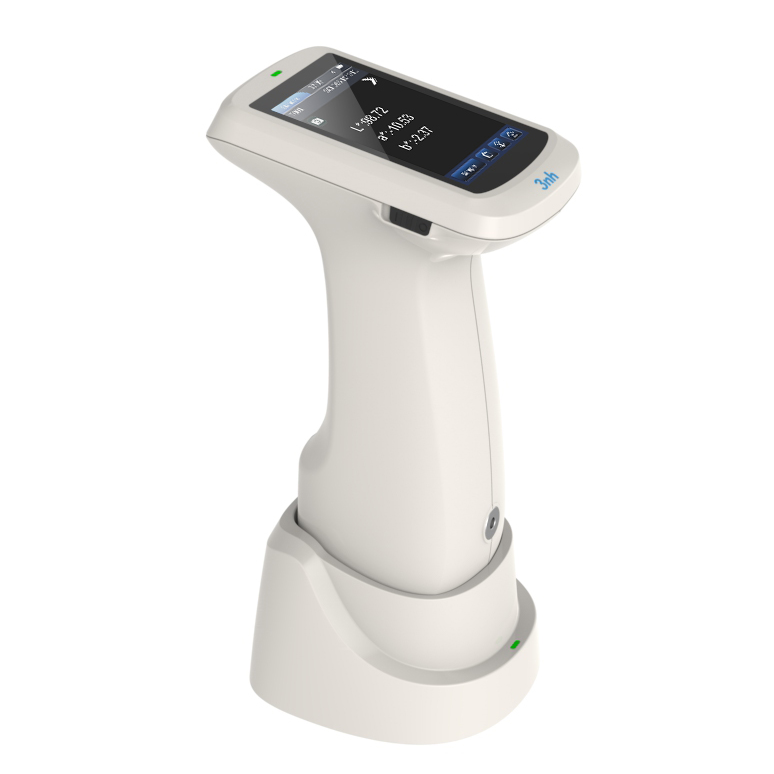
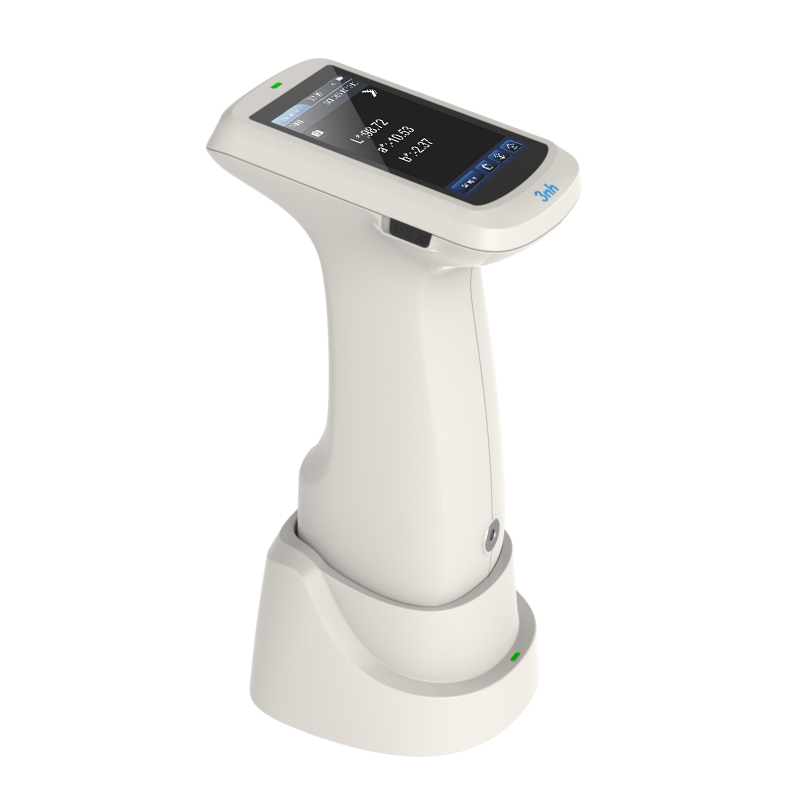
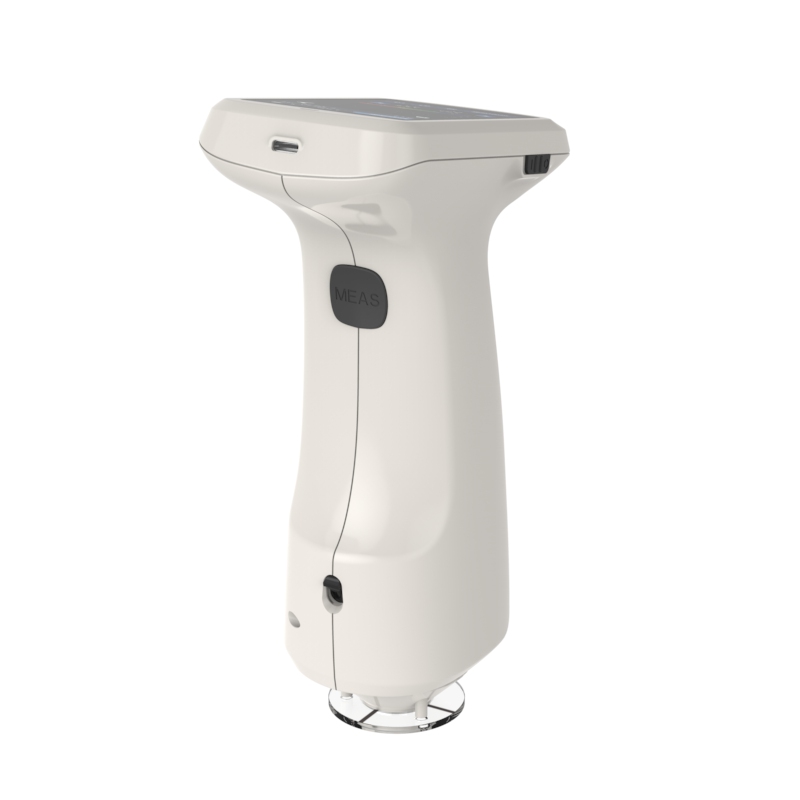
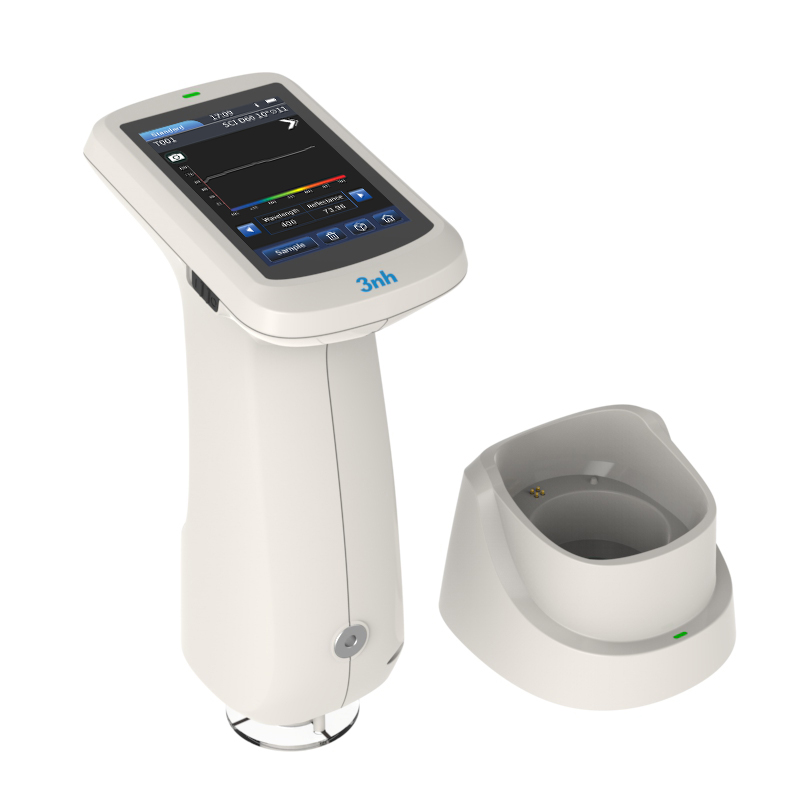
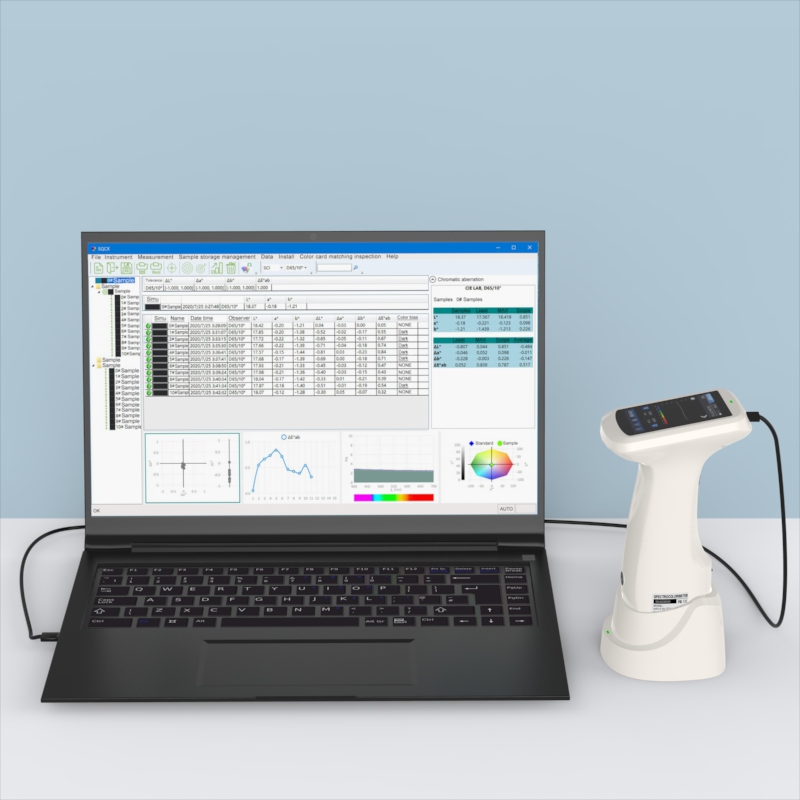
The 3nh PS430 Spetrophotometer is a high-precision model in its series, designed specifically for high-end color matching and accurate color communication. It features 12 interchangeable apertures for full-dimensional adaptability, repeatability ΔE*ab ≤ 0.02, and inter-instrument difference ≤ 0.2. Equipped with a UV light source and dual-mode measurement technology, it covers both fluorescent and conventional samples, making it ideal for industries with strict color measurement requirements.
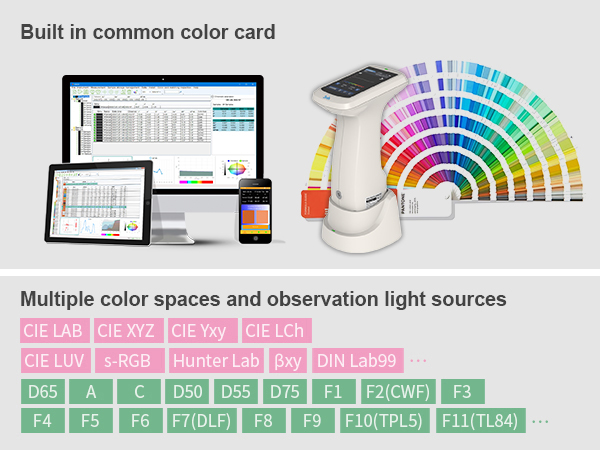
Excellent data stability: Repeatability ΔE*ab ≤ 0.02, inter-instrument difference ≤ 0.2, ensuring consistent results across multiple instruments for precise color matching and communication.
12 interchangeable apertures: Includes 3mm/ 5mm/ 6mm/ 10mm/ 11mm/ 1×3mm (flat and nozzles), covering samples of various sizes and shapes with no measurement blind spots.
International standard measurement: D/8 SCI+SCE technology objectively reflects true color, reduces interference from surface texture, supports separate or simultaneous SCI/SCE measurement, and delivers results in approximately 1 second.
Dual accuracy assurance: Non-contact automatic calibration + HD camera real-time positioning guarantee accurate measurement points and laboratory-level precision.
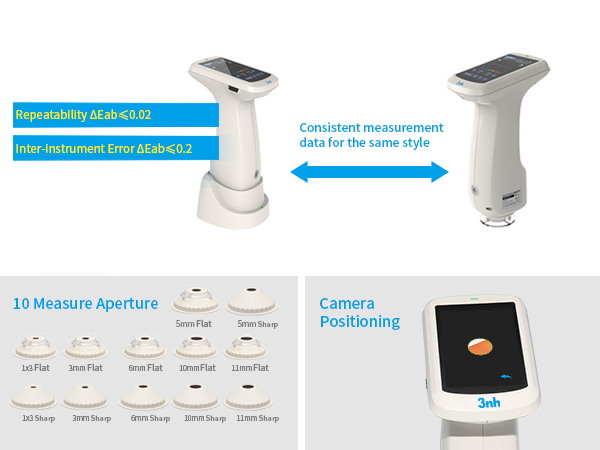
Full-spectrum light source: Full-spectrum LED + UV light source covers visible to ultraviolet bands with uniform spectral distribution, ideal for measuring fluorescent samples.
High-performance signal processing: Dual 18-group silicon photodiode array + 40mm large integrating sphere for efficient and accurate color data processing.
Nano-level spectroscopy: Nano-integrated optical device captures color signals precisely, greatly improving measurement accuracy and stability.
Anti-interference dual optical path: With self-developed algorithm, it offers stronger anti-interference performance than single optical path systems, ensuring stable and reliable readings.
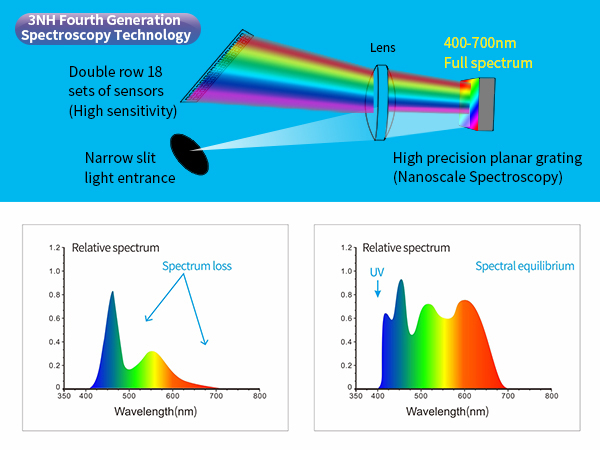
Built-in standard color libraries: Quickly matches color codes without physical color charts, saving time and improving production efficiency.
Comprehensive color indices & light sources: Supports over 30 light sources and 40 measurement indices, including spectrum graphs, color values, color difference charts, pass/fail judgment, and color simulation to meet diverse industry needs.
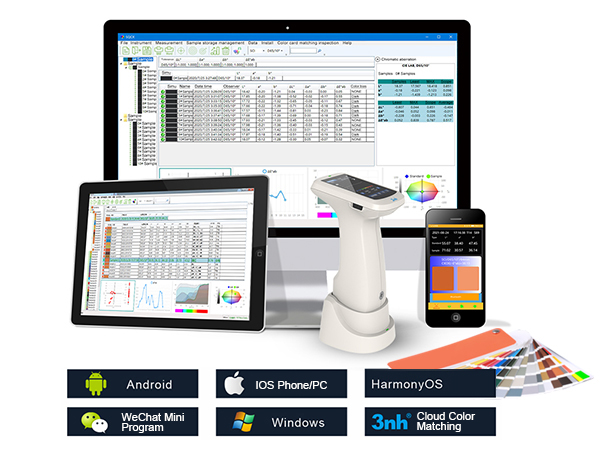
Multi-platform compatibility: :USB and Bluetooth interfaces; supports Android, iOS, Windows, WeChat Mini Program, and HarmonyOS. Connects to PC and printers for digital color management, color comparison, test report generation, and customized color data management for quality control across industries.
| Model | PS430 Spectrophotometer |
| Illumination | D/8 (Diffuse / 8°), SCI/SCE, complying with CIE No.15, GB/T 3978, GB 2893, GB/T 18833, ISO7724-1, ASTM E1164, DIN5033 Teil7 |
| Features | Dual silicon photodiode array; built-in electronic color card. For color quality control in plastics, electronics, paint, ink, textile, printing, ceramics, etc. |
| Light Source | Full-spectrum LED + UV |
| Integrating Sphere | Φ40mm |
| Spectroscopy | Nano-integrated spectral device |
| Sensor | Dual 18-group silicon photodiode array |
| Wavelength Range | 400-700nm |
| Measurement Apertures | 12 apertures: 3mm, 5mm, 6mm, 10mm, 11mm, 1×3mm (flat & nozzle) |
| Measurement Mode | SCI & SCE simultaneous measurement |
| Color Spaces | CIE LAB,XYZ,Yxy,LCh,CIE LUV,s-RGB,HunterLab,βxy,DIN Lab99 |
| Color Difference Formulas | ΔE*ab,ΔE*uv,ΔE*94,ΔE*cmc(2:1),ΔE*cmc(1:1),ΔE*00,DINΔE99,ΔE(Hunter) |
| Other Indices | Spectral reflectance, WI, YI, Metamerism Index MI, staining fastness, color change fastness, strength, hiding power, Munsell, blackness, CMYK density, tint |
| Observer | 2°/10° |
| Light Sources | D65,A,B,C,D50,D55, D75,F1,F2(CWF),F3,F4,F5,F6,F7(DLF), F8,F9,F10(TPL5),F11(TL84), F12(TL83/U30),U35,NBF,ID50,ID65 ,LED-B1,LED-B2,LED-B3,LED-B4,LED-B5, LED-BH1,LED-RGB1,LED-V1,LED-V2 |
| Display | Spectrum, color data, ΔE, pass/fail, color simulation, color tendency |
| Measurement Time | Approx. 1 s |
| Repeatability | Chromaticity value: MAV/SCI, standard deviation value ΔE*ab within 0.02 (after preheating and correction, measure the white board 30 times at intervals of 5 seconds and take the average value). Spectral reflectance: MAV/SCI, standard deviation within 0.08% (400~700nm: within 0.18%) |
| Inter-Instrument Agreement | MAV/SCI,ΔE*ab within 0.2 (average values measured by 12 color plates of BCRA Series II) |
| Display Precision | 0.01 |
| Reflectance Range | 0-200% |
| Reflectance Resolution | 0.01% |
| Measuring Mode | Single measurement, average measurement (2-99 times) |
| Positioning | Stable plate positioning + camera viewfinder positioning |
| White Calibration | Non-contact automatic white calibration |
| Dimensions | 120*75*207mm |
| Weight | 367 g (excl. calibration base) |
| Battery | 3.7 V 3200 mAh Li-ion, up to 8000 measurements in 8 hours |
| Light Source Life | >1.2 million measurements in 10 years |
| Screen | 3.5-inch TFT capacitive touch |
| Interface | USB,Bluetooth |
| Storage | 500 standards, 15,000 samples; APP/PC cloud storage |
| Software | Android, iOS, Windows, WeChat Mini Program, HarmonyOS |
| Language | Simplified Chinese, English, Traditional Chinese |
| Operating Environment | 0-40°C, 0-85%RH (non-condensing), altitude<2000 m |
| Storage Environment | -20-50°C, 0-85%RH (non-condensing) |
| Accuracy | Class 1 metrology certified |
| Standard Accessories | Power adapter, data cable, user manual, quality management software (downloadable on official website), white calibration box, protective cover, wrist strap, measuring apertures |
| Optional Accessories | Mini printer, powder test kit |
| Note | Specifications subject to change without prior notice |
1. When I received NH310/NH300 colorimeter and perform measurement, why the measured data is abnormal?
After receiving NH310/NH300, you have to perform white and black calibration manually when first starting.
2. In which condition, manual white and black calibration and auto calibration are required for NH310?
a. It’s needed to perform manual calibration for NH310 when first starting.
b. In the subsequent starting, NH310 will perform auto calibration at startup. No need to perform manual calibration.
c. Suggestion: it’s best to perform manual calibration once a week or when NH310 measured data is not accurate.
3. In which condition, manual white and black calibration for NH300 is required?
a. It’s needed to perform manual calibration for NH300 when first starting.
b. In the subsequent starting, no need to perform manual calibration.
c. Suggestion: it’s best to perform manual calibration once a week or when NH300 measured data is not accurate.
4. How to replace NH310 measuring aperture?
There are three measuring apertures for NH310: Φ8mm (standard accessory), Φ4mm (standard accessory), extended Φ8mm (optional accessory)
a. Turning on
b. Removing measuring aperture, install the needed measuring aperture.
c. Select “Settings-Aperture Setting” in main menu to select corresponding measuring aperture.
d. After selecting aperture, the instrument will display “White and Black Calibration” interface. White and black calibration must be performed.
e. Replace completed.
5. CQCS3 (Color Quality Control System) Installation
a. Before installation, please Copy CQCS3 folder to your computer and don’t remove any files in CQCS3 folder.
b. Double-click the setup.exe to install CQCS3 software.
c. Then double-click Install.bat under the CQCS3\USB_Driver file to install the driver.
d. Detailed installation information please read the "Installing Software" under CQCS3 User manual.doc.
6. How to check communication port?
a. Connect colorimeter to the PC with USB cable.
b. Turn on the colorimeter to enter main menu. Select “Comm” and press “Enter” key to start communication.
c. Right click on “My Computer” on the desktop. Click “Manage” -> “Device Manager” -> “Ports”, you can see similar display as “SCI USB2Serial (COM6)”.
d. Click “Settings->Communication Parameters” in CQCS3 software interface. Select the corresponding port in “Serial Port”.
7. After completing CQCS3 installation, how to solve the problem if it display “! USB Device” or “! SCI USB2Serial (COM6)” when checking the communication port?
a. Right click “! USB Device” or “! SCI USB2Serial (COM6)”, “Update Driver” -> “Install from a list or specific location (Advanced)” -> “Next” ->“Include this location in the search” -> “Browse”, specify USB driver file path “CQCS3\USB_Driver”, click “Next”. Then it will install successfully.
b.Detailed installation information please refers to “2.2 Installing USB Driver” in Color Quality Management System User Manual.doc.
8. Notes for First Using CQCS3 Software
a. Users must specify Standard File Name, Sample File Name and Sample Database File Name when first use.
b.Standard File is use to store standard measurement data. Sample File is used to store sample measurement data. Sample Database File is used to store the measured data exported from sample records.
9. How to solve the problem when “Connection Timeout” occurred?
a. When the colorimeter is disconnected to the PC, “Connection Timeout” will occur. At the moment, you have to check whether the USB cable is well connected the colorimeter and the PC. Then you can re-plug the USB to try out.
b. After ensuring the colorimeter is connected to the PC with USB cable, turn on the colorimeter and enter the main menu. Select “Comm” and press “Enter” key to start communication.
c. Turn off CQCS3 software, and reopen it.
10. How to solve the problem when the interface display "USB Disconnect"
a. Check whether the USB cable is connected. If not, please connect it. Check whether the connection is effective. You can re-plug the USB cable to test.
b. If the USB cable is connected well but the interface still displays "USB Disconnect", please re-start the colorimeter and enter "Menu" -"Comm"to start the communication.
c. Change the USB cable or change the USB port in you PC.
11. How to solve the problem when the colorimeter cannot be turned on in the condition of battery-powered?
a. If this phenomenon occurred, it means the battery power is not enough. You need to charge the battery.
b. When charge the battery, please insert the battery to the instrument, and plug in the adapter to charge the battery. After 5 minutes, the instrument can be turned on.
c. If the instrument still cannot be turned on after charging 5 minutes, you can pull out the adapter and re-plug in to check it. Or repeat this operation.
d. If the instrument still cannot be turned on after charging 5 minutes, you can turn off the colorimeter and turn on it again to check it. Or repeat this operation.
e. If you have tried all the methods above but the colorimeter still cannot be turned on, please change the battery.
